
When you’re listening to your favorite music with your Bluetooth headphones, it’s a frustrating experience when they suddenly start disconnecting. Sometimes, they will cut out completely and force you to reconnect, while other times, they will just drop off for a few seconds before connecting again. In either case, it’s important to figure out why this is happening and find a fix for it.
The first step is to make sure your Bluetooth devices are within range. Bluetooth ranges are usually around 30 feet (about 10 meters). If you’re unsure, try moving the devices closer to each other and see if that helps.
Alternatively, you can use a Bluetooth range extender to increase the range of your devices. This will ensure they’re always in range and won’t cut out or disconnect when you’re a distance away from each other.
Nearby Interference, Signal Blocker, or Jammer
This is a common cause of Bluetooth connection issues and can happen when your headphone’s radio waves are interrupted by other wireless connections in the area. For example, your PC, wireless telephone, radio, TV, and Satellite phones may use signals that can disrupt your headphone’s Bluetooth connection.
If you have any of these in the same room, move them to another location or remove and turn off your devices. Metal doors and devices also alter Bluetooth signals, which can make it hard for your headphone to communicate with your smart device.
Check for Bluetooth Driver Updates
Often, Bluetooth connectivity problems are caused by outdated drivers on your computer. You can update these drivers manually or through the official Bluetooth software. If you don’t update your drivers, your Bluetooth headset won’t connect to your laptop or desktop properly.
Clear Your Bose Product Memory of Previously-Connected Bluetooth(r) Devices
Your Bose product remembers the last several devices it connected to so it can quickly reconnect to them. If your device keeps connecting to a previous device, you can clear its memory by following these instructions:
In the settings of the Bluetooth device, find the list of previously-connected products and remove your product from it.
Reset Your Headphones
A hard reset on your headphones is a quick and simple way to get them back to their factory default settings. Typically, you can do this by pressing and holding the power button for 10 seconds.
If you’re not sure how to perform a hard reset, read your user manual. The process will vary depending on the brand.
You can also try re-pairing your headphones to see if that fixes the issue. If the problem still persists, you might want to consider getting a new pair of headphones.
The other common reason that Bluetooth headsets keep disconnecting is low battery. This is because a Bluetooth connection drains the batteries of the smart device that’s using it, and when the battery runs out, it automatically turns off Bluetooth to save power.
If your headphone’s battery is dead, it can still be connected to a compatible device via the audio jack. However, it will cut out and require a charge to resume working. Thankfully, many modern headphones feature a rechargeable battery.

kurdene Wireless Earbuds Bluetooth 5.3 in Ear Buds Light Weight Headphones,Deep Bass Sound,Built in Mics Headset,Clear Calls Earphones for Sports Workout
$9.99 (as of December 28, 2025 18:54 GMT +00:00 - More infoProduct prices and availability are accurate as of the date/time indicated and are subject to change. Any price and availability information displayed on [relevant Amazon Site(s), as applicable] at the time of purchase will apply to the purchase of this product.)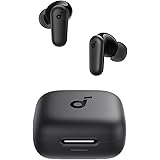
Soundcore P30i by Anker Noise Cancelling Earbuds, Strong and Smart Noise Cancelling, Powerful Bass, 45H Playtime, 2-in-1 Case and Phone Stand, IP54, Wireless Earbuds, Bluetooth 5.4 (Black)
$29.99 (as of December 28, 2025 18:54 GMT +00:00 - More infoProduct prices and availability are accurate as of the date/time indicated and are subject to change. Any price and availability information displayed on [relevant Amazon Site(s), as applicable] at the time of purchase will apply to the purchase of this product.)
Samsung Galaxy Buds 3 Pro AI True Wireless Bluetooth Earbuds, Noise Cancelling, Sound Optimization, Redesigned Comfort Fit, Silver [US Version, Amazon Exclusive, 2Yr Warranty]
$159.99 (as of December 28, 2025 18:54 GMT +00:00 - More infoProduct prices and availability are accurate as of the date/time indicated and are subject to change. Any price and availability information displayed on [relevant Amazon Site(s), as applicable] at the time of purchase will apply to the purchase of this product.)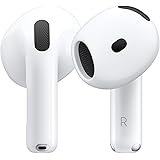
Apple AirPods 4 Wireless Earbuds, Bluetooth Headphones, with Active Noise Cancellation, Adaptive Audio, Transparency Mode, Personalized Spatial Audio, USB-C Charging Case, Wireless Charging, H2 Chip
$139.99 (as of December 28, 2025 18:54 GMT +00:00 - More infoProduct prices and availability are accurate as of the date/time indicated and are subject to change. Any price and availability information displayed on [relevant Amazon Site(s), as applicable] at the time of purchase will apply to the purchase of this product.)
Bose QuietComfort Headphones - Wireless Bluetooth Headphones, Active Over Ear Noise Cancelling and Mic, USB-C Charging, Deep Bass, Up to 24 Hours of Playtime, Black
$199.00 (as of December 28, 2025 18:54 GMT +00:00 - More infoProduct prices and availability are accurate as of the date/time indicated and are subject to change. Any price and availability information displayed on [relevant Amazon Site(s), as applicable] at the time of purchase will apply to the purchase of this product.)
bmani Ear Buds Wireless Earbuds Bluetooth Headphones with 80H Playtime LED Display Case, Over-Ear Hook with Mic, Stereo Sound, Easy Button Controls, Sports Earphones for Running Workout Gym Black
$24.69 (as of December 28, 2025 18:54 GMT +00:00 - More infoProduct prices and availability are accurate as of the date/time indicated and are subject to change. Any price and availability information displayed on [relevant Amazon Site(s), as applicable] at the time of purchase will apply to the purchase of this product.)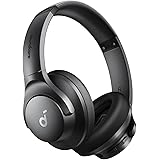
Soundcore by Anker Q20i Hybrid Active Noise Cancelling Headphones, Wireless Over-Ear Bluetooth, 40H Long ANC Playtime, Hi-Res Audio, Big Bass, Customize via an App, Transparency Mode
$37.99 (as of December 28, 2025 18:54 GMT +00:00 - More infoProduct prices and availability are accurate as of the date/time indicated and are subject to change. Any price and availability information displayed on [relevant Amazon Site(s), as applicable] at the time of purchase will apply to the purchase of this product.)
Wireless Earbuds 75hrs Bluetooth 5.4 Headphone Sport, 2025 Bluetooth Earbuds Stereo Deep Bass Over Ear Bud with Earhooks, ENC Noise Cancelling Mic, IPX7 Waterproof Earphone for Workout/Running
$25.64 (as of December 28, 2025 18:54 GMT +00:00 - More infoProduct prices and availability are accurate as of the date/time indicated and are subject to change. Any price and availability information displayed on [relevant Amazon Site(s), as applicable] at the time of purchase will apply to the purchase of this product.)
Beats Powerbeats Pro 2 - Wireless Noise Cancelling Workout Earbuds with Secure- Fit Earhooks, Up to 45-Hour Battery with Charging Case, Sweat & Water Resistant, Heart Rate Monitoring - Jet Black
$199.95 (as of December 28, 2025 18:54 GMT +00:00 - More infoProduct prices and availability are accurate as of the date/time indicated and are subject to change. Any price and availability information displayed on [relevant Amazon Site(s), as applicable] at the time of purchase will apply to the purchase of this product.)